

Controlling a running platform
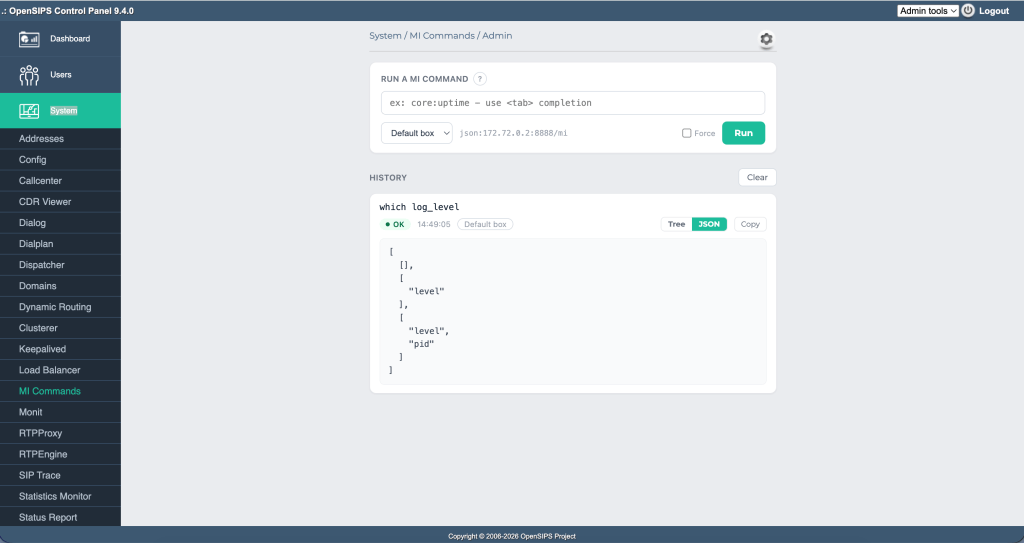
A deployed SIP platform still needs operating: taking a gateway out of rotation, ending a dialog, flushing a cache, reading a report — on a system that is carrying calls at the same time. OpenSIPS exposes this through its Management Interface: dozens of commands that inspect and steer the running process, more with every module loaded, none requiring a restart or a config reload.
The OpenSIPS Control Panel has always been able to send them. MI Commands has been in the panel for years.
The missing piece
However, the tool didn’t tell you much. You had to know in advance that the command is drouting:gw_status, that it takes a gateway id, that a second parameter sets a new state, that those two go in that order, and that a partition name — if you use partitions — goes in front of both. Get one wrong and OpenSIPS rejects the call, reporting that it was invalid but not what a valid one looks like.
So the tool worked if you brought the manual with you: a documentation tab open next to the panel tab.
Asking the server
OpenSIPS already has that information and will hand it over. Ask it what a command accepts:
opensips-mi which drouting:gw_status[ [], ["partition_name"], ["gw_id"], ["gw_id", "status"], ["partition_name", "gw_id"], ["partition_name", "gw_id", "status"]]
Six arrays — six legal ways to call this command. Not a bag of parameters to combine yourself, but the combinations themselves. We call them recipes: each is a complete parameter set for one way of calling the command. which with no argument returns the command list the same way.
The MI Commands tool was rebuilt around that. It asks the box which commands it has, then asks per command for that command’s recipes — nothing hard-coded, so nothing goes stale.
Finding the command
Clicking the empty input lists every command the box exports. Typing a fragment narrows the list. This is a substring search, not a prefix filter: report returns every command with report in the name, status every command with status, regardless of module. Tab completes as far as the candidates agree, and again cycles through them one at a time. ↑ / ↓ walk the list, Enter selects.
With the list closed, the same arrows walk history: previously run commands, oldest to newest, persisted across a page reload and tied to your login rather than to the browser, so the next user of that machine does not inherit your session. A partially typed line is preserved — walk back down and it is unchanged.
Building the call
Once a command is chosen, its recipes appear, one row each, as reported by the box.
For drouting:gw_status that is six rows, from empty to partition_name gw_id status. Every name on a row is a parameter that call takes. The rows track what you type: supplied values appear in place, missing ones are marked, and a row gets a ✓ once the line satisfies it.
Pick a row with the mouse, or walk the rows with ↑ / ↓ and press Enter. Either way the recipe is written out as a template — one empty slot per parameter — with the caret in the first slot and anything already typed carried over.
From there: Tab completes parameter names instead of commands. Tab and Shift+Tab step between the template’s parameters, filled ones included, placing the caret after the value so it can be extended or deleted. Validation runs as you type — unknown command, missing argument, positional and named parameters mixed in one line — and is reported under the field rather than arriving as a server rejection.
The Run button stays disabled until the line matches one of the command’s recipes, so a call that cannot succeed is not sent. The checkbox beside it sends the line anyway, then clears itself, so the lock is not left off by accident.
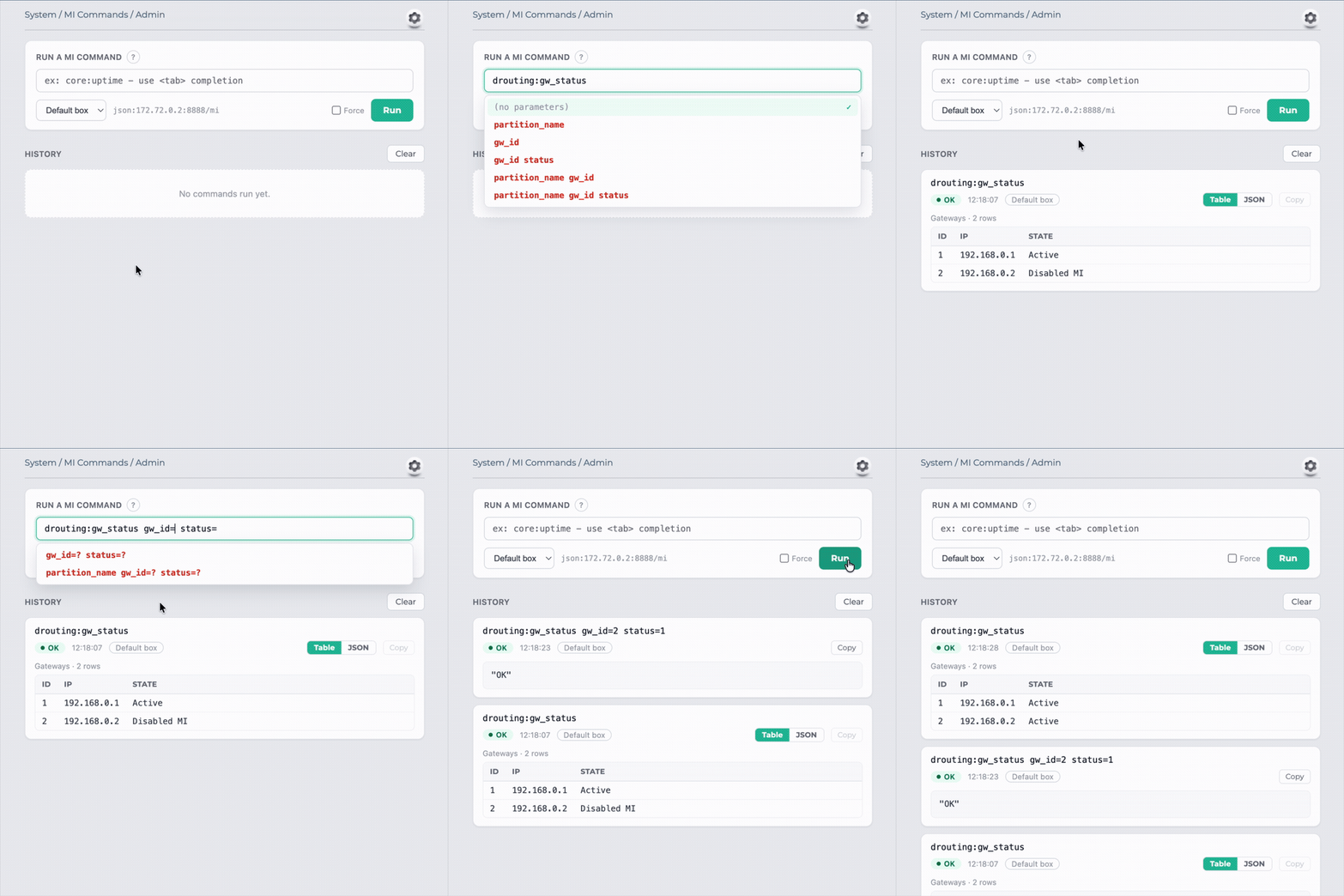
drouting:gw_status with no parameters, the recipe picked from the dropdown, and two gateways come back, one of them disabled. Then the same command with the gw_id status recipe to bring it back up. Then ↑ to recall the first call, Run, and the gateway reads Active.Reading what came back
Every call lands as a card, newest first, with the command, the box it ran against and the time.
The reply is rendered according to its shape. A flat reply is laid out as a table, one row per entry. A nested reply becomes a tree opened a branch at a time, each branch reporting how much it holds, so a large reply is navigated rather than scrolled. Raw JSON is one click away from either view, and the view you chose is remembered for the next reply of that shape.
Any command on any card can be re-sent by clicking it: the line goes back into the input, ready to run or edit. Cards survive a reload, so a page left open still has the last answers on it.
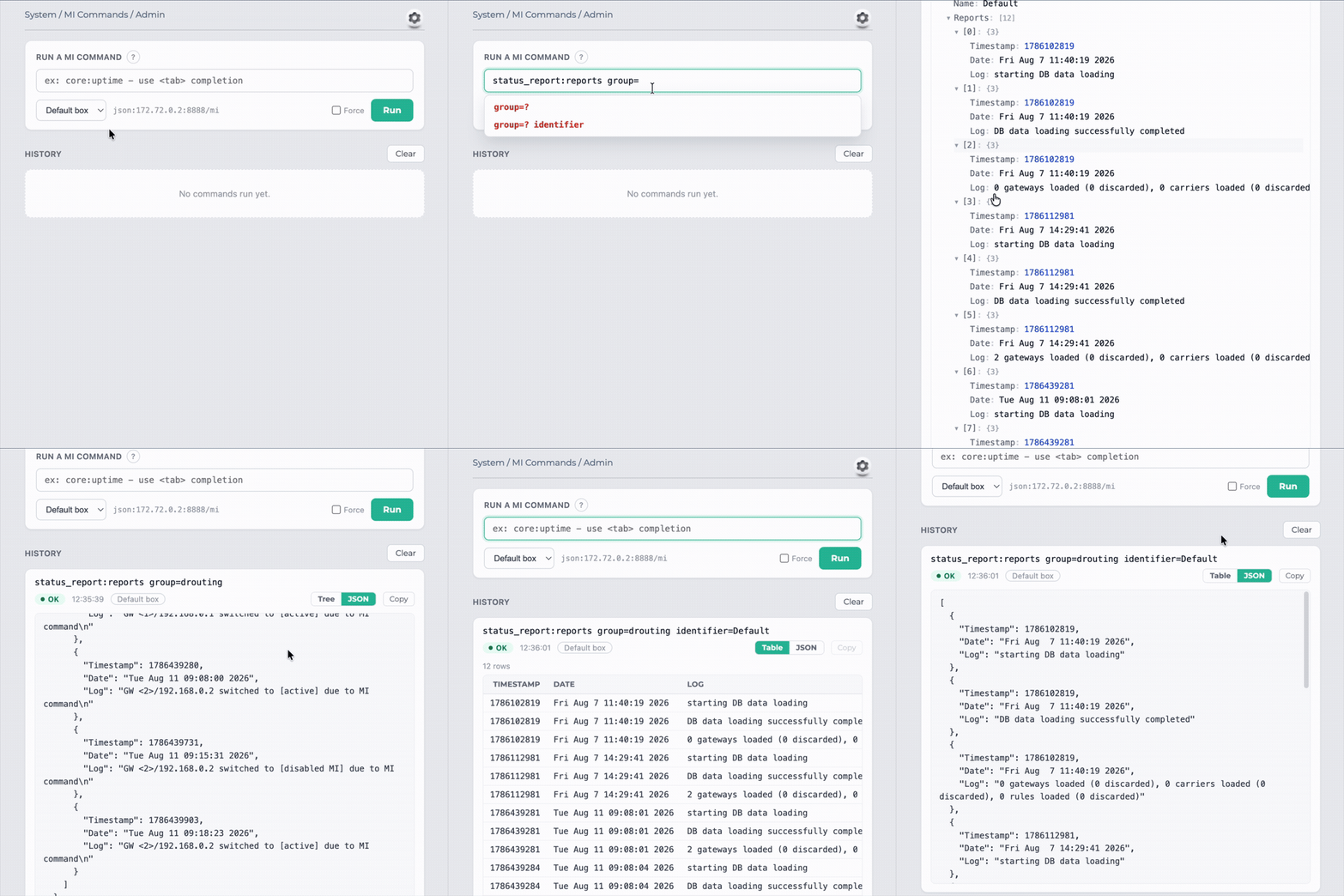
reports, taking the group recipe for status_report:reports, and the answer arriving as a tree. Then the same command again with the identifier added, and the answer arriving as a table.Also in 9.4.0
OpenSIPS 4.0 renamed its MI commands to a namespaced form — get_statistics is now statistics:get, ds_list is dispatcher:list. Every tool and dashboard widget in the panel has been moved to the new names, so 9.4.0 talks to a 4.0 box throughout.
Some table schemas changed in 4.0 as well, and the tools that read them have been updated to match. The Clusterer got more than that. Managing cluster nodes is, in the end, editing rows in a table — which is what tviewer, our generic table tool, is for. The Clusterer is now generated from a tviewer configuration like the rest of our CRUD tools. It also gains a second tab, Cluster Bridges, for the replication links between separate clusters that 4.0 introduced — switched off by default, and enabled from the tool’s own settings.
Summary
OpenSIPS Control Panel 9.4.0 is now available. Among other updates and fixes, the new MI Commands tool comes with command search, parameter recipes, auto-completion, pre-run validation, history and shape-driven reply layouts.


